Cambodia e-Arrival (CeA)
Arrival Card Asia | Cambodia e-Arrival
August 7, 2026
✈️ Before You Go
Before you fly to Cambodia, don’t assume your visa-on-arrival is a breeze—it can mean a 45-minute queue after a long flight. Instead, complete the official Cambodia e-Arrival (CeA) form online up to 7 days before departure. This single submission covers both your immigration card and customs declaration, and if you need a tourist visa (most nationalities do), you can add it in the same portal. The real-world process takes about 10 minutes to fill out, but approvals for the e-visa part can take up to 3 business days—so submit at least 4 days early. First-time visitors are most surprised that the CeA is not just a visa; it’s a combined entry form, and you still need to show your passport at the counter. Travelers often find that screenshot your QR code and save it offline—airport Wi-Fi is unreliable, and the officer at Phnom Penh or Siem Reap will scan your phone directly, so a dead battery or no signal can cause a frustrating delay.
⚠️ Important Notes
Fill Time Window
Complete within 7 days before arrival
Cost
Free
0- • Since 2024, Cambodia has fully implemented the Cambodia e-Arrival card, replacing three paper forms (immigration, customs, health)
- • Must submit online within 7 days before arrival — not earlier than 7 days
- • Screenshot the QR code confirmation in advance — Cambodia airport network coverage can be unreliable
- • Cambodia visa (e-Visa or visa on arrival) is a separate process — the e-Arrival card is not a visa
- • The website supports English, French, and Chinese — switch language at the top of the page
- • e-Arrival combines immigration card + customs declaration + health declaration into one single form
- • Passport number: be careful with 0 (zero) vs O (letter). Passport numbers typically do not contain the letter O
- • Purpose of visit cannot be changed after selection — choose Tourism or Business carefully before confirming
- • Chinese mainland travelers transiting through Cambodia without leaving the airport do not need e-Arrival
- • Cambodia e-Arrival is completely free — any website claiming to process it for a fee is a scam
📋 Field Guide
| Field Name | Tips & Notes |
|---|---|
Full Name Full Name | Match passport exactly. Surname first, then given name. |
Passport Number Passport Number | No letter O in passport numbers — it's always zero. |
Purpose of Visit Purpose of Visit | Select 'Tourism' or 'Business' accordingly. |
Step-by-Step Guide
💡 Before You Start
Before starting, gather your passport, flight itinerary, and accommodation details. Ensure your passport is valid for at least 6 months beyond your stay. Fill out the form within 7 days of arrival, and have a stable internet connection. Save the QR code immediately after submission.
1Account Creation & Login
2fields
Account Creation & Login
2fields
Create an account or log in to the Cambodia e-Arrival system to start your application.
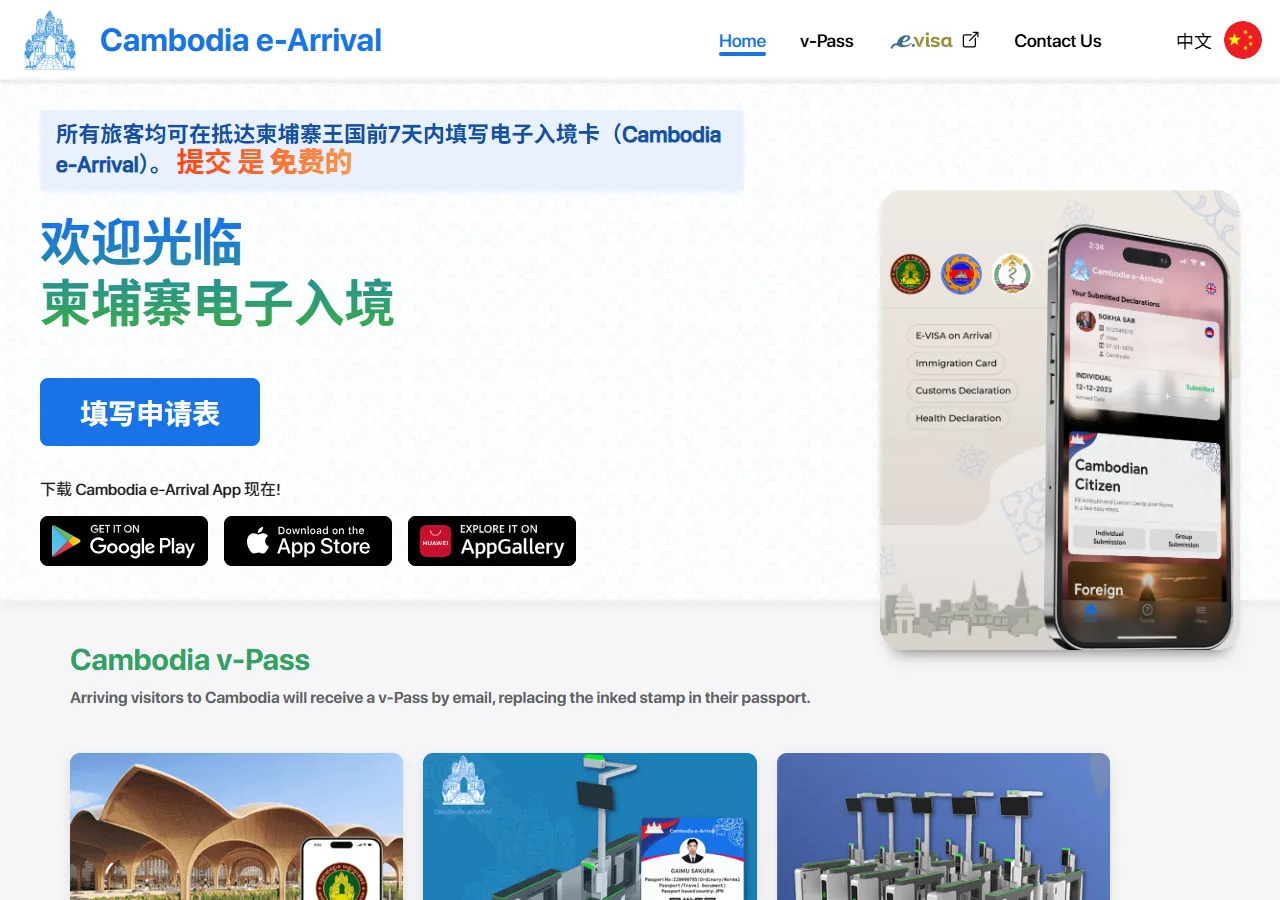
📸 About This Screenshot
This screenshot shows the latest official electronic entry card landing/login page. The step-by-step text guide below is based on the actual form structure, with detailed field instructions and common mistake warnings for your reference.
Email Address
emailRequiredEnter a valid email address that you have access to. This will be used for login and to receive your e-Arrival confirmation. Use the same email for all future applications. Ensure there are no typos, as the QR code will be sent to this email.
⚠ Common Mistakes
- •Using a temporary or incorrect email address, missing the QR code
- •Typing the email with spaces or special characters
Password
passwordRequiredCreate a strong password with at least 8 characters, including uppercase, lowercase, and numbers. Do not use easily guessable passwords like '123456' or 'password'. Remember it or use a password manager, as you will need it to log in later.
⚠ Common Mistakes
- •Using a weak or common password that is easy to hack
- •Forgetting the password and not saving it anywhere
2Personal Information
3fields
Personal Information
3fields
This section captures your identity information. One rule: copy everything directly from your passport. No nicknames, no shortened names.
Full Name (as in passport)
textRequiredEnter your full name exactly as it appears on your passport, including the order (given name(s) then family name, or as per passport). Do not use nicknames or abbreviations. If you have a middle name, include it. Ensure the spelling matches your passport letter-for-letter.
⚠ Common Mistakes
- •Using a nickname or shortened name instead of the passport name
- •Reversing the order of first and last names
Date of Birth
dateRequiredSelect your date of birth in the format DD/MM/YYYY (day/month/year). Use the date as it appears on your passport. Be careful with the day/month order, as some countries use MM/DD/YYYY. Double-check the year to avoid errors.
⚠ Common Mistakes
- •Confusing day and month (e.g., entering 05/10 instead of 10/05)
- •Selecting the wrong year due to a typo
Gender
selectRequiredSelect your gender as indicated on your passport. Options are typically 'Male', 'Female', or 'Other' (if available). Choose the one that matches your passport exactly.
⚠ Common Mistakes
- •Selecting the wrong gender due to a misclick
- •Choosing 'Other' when the passport specifies a binary gender
3Passport & Nationality Details
3fields
Passport & Nationality Details
3fields
Enter your passport information and nationality as shown on your travel document.
Passport Number
textRequiredEnter your passport number exactly as it appears on the passport, including all letters and numbers. Do not include spaces or hyphens. Be careful with characters like 'O' (letter) and '0' (zero), and 'I' (letter i) and '1' (one). Double-check each character.
⚠ Common Mistakes
- •Confusing the letter 'O' with the number '0'
- •Adding spaces or hyphens that are not in the passport
Nationality
selectRequiredSelect your nationality from the dropdown list. This should match the country that issued your passport. If you hold multiple passports, use the one you will travel with. Do not select 'Cambodian' unless you are a citizen.
⚠ Common Mistakes
- •Selecting the wrong country due to similar names (e.g., 'United States' vs 'United Arab Emirates')
- •Choosing the nationality of a country you don't hold a passport for
Passport Expiry Date
dateRequiredEnter the passport expiry date in DD/MM/YYYY format. This is found on the passport's biographical page. Ensure your passport is valid for at least 6 months beyond your intended stay in Cambodia. Double-check the date to avoid mistakes.
⚠ Common Mistakes
- •Entering the issue date instead of the expiry date
- •Using the wrong format (e.g., MM/DD/YYYY instead of DD/MM/YYYY)
4Travel Details
3fields
Travel Details
3fields
Provide information about your flight, arrival date, and purpose of visit.
Arrival Date
dateRequiredEnter the date you will arrive in Cambodia in DD/MM/YYYY format. This must be within 7 days from the date you are filling out the form. Do not fill it out more than 7 days in advance, as the system will reject it. Use your flight itinerary to confirm the exact date.
⚠ Common Mistakes
- •Filling out the form more than 7 days before arrival, causing rejection
- •Entering the departure date instead of the arrival date
Flight Number
textRequiredEnter the flight number as shown on your booking, e.g., 'K6668'. Include the airline code (usually 2 letters) followed by the flight number. Do not include spaces or hyphens. If you are arriving by land or sea, enter 'LAND' or 'SEA' as applicable.
⚠ Common Mistakes
- •Entering the flight number with spaces or dashes (e.g., 'K6 668')
- •Using the return flight number instead of the arrival flight
Purpose of Visit
selectRequiredSelect the primary purpose of your visit from the options (e.g., Tourism, Business, Transit, Study, Work, etc.). Choose the one that best matches your actual reason. If you are transiting, select 'Transit' even if you plan to leave the airport.
⚠ Common Mistakes
- •Selecting 'Tourism' when actually visiting for business, which may cause issues at immigration
- •Choosing 'Transit' when you are staying in Cambodia for several days
5Accommodation & Health Declarations
3fields
Accommodation & Health Declarations
3fields
Provide your accommodation details and answer health-related questions.
Accommodation Type
selectRequiredSelect the type of accommodation you will stay at (e.g., Hotel, Guesthouse, Private Residence, Other). If you are staying with friends or family, choose 'Private Residence'. For a hotel, you will need the hotel name and address.
⚠ Common Mistakes
- •Selecting 'Hotel' but not providing the hotel name in the next field
- •Choosing 'Other' when a specific category applies
Accommodation Name & Address
textRequiredEnter the name of your hotel, guesthouse, or the address of your private residence. Include the street, district, and city (e.g., '123 Street 456, Phnom Penh'). If you don't have a fixed address, provide the name of the place and 'Cambodia'.
⚠ Common Mistakes
- •Entering only the hotel name without the address, which may be incomplete
- •Using the address of a previous stay instead of the upcoming one
Health Declaration (Symptoms)
radioRequiredAnswer whether you have any symptoms such as fever, cough, or difficulty breathing. Select 'No' if you are healthy. If you select 'Yes', you may be subject to additional health screening upon arrival. Be honest, as false declarations can lead to penalties.
⚠ Common Mistakes
- •Selecting 'No' when you have symptoms, risking health and legal issues
- •Misunderstanding the question and answering about past illnesses instead of current symptoms
6Review & Submission
2fields
Review & Submission
2fields
Review all your information, submit the form, and save your QR code.
Confirmation of Accuracy
radioRequiredCheck the box to confirm that all information provided is true and correct. This is a legal declaration. Make sure you have reviewed every field, especially your name, passport number, and arrival date. Incorrect information may lead to delays or denial of entry.
⚠ Common Mistakes
- •Checking the box without reviewing the form, leading to undetected errors
- •Assuming the system will auto-correct mistakes
Save QR Code
uploadRequiredAfter submission, you will receive a confirmation with a QR code. Take a screenshot or download the PDF and save it on your phone. Also print a paper copy as a backup. The QR code is essential for entry; without it, you may face delays at immigration.
⚠ Common Mistakes
- •Not saving the QR code and relying on email access, which may fail due to poor network
- •Deleting the confirmation email before arrival
💬 Travel Experience Exchange
Applying or already traveled? Share your entry/exit experience, real problems encountered, or recent changes to help fellow travelers — our editors will also respond regularly.
- Share pitfalls or surprises during your entry process
- Let others know about recent entry procedure changes
- Read the guide and warnings above before asking
- Comments are moderated by the editorial team; inappropriate content is removed
💬 Leave a comment
Just enter your name and comment.